
Contents:
Click on any name in the table below to jump to the specific section.
| Navigation |
| Reviewing Approved/Rejected Submissions |
| Pricing Review Process |
| Support |
Navigation
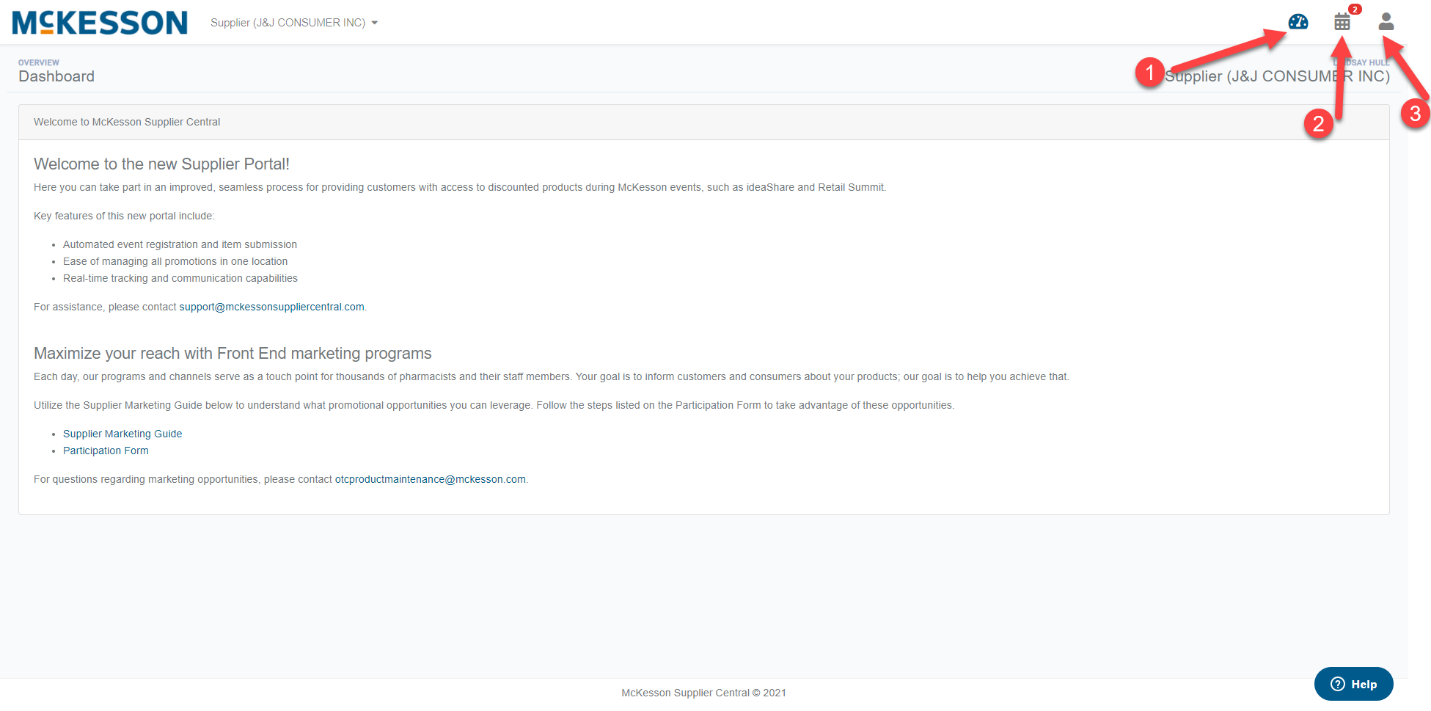
When you first log into McKesson Supplier Central, you will arrive on your homepage. Your homepage will contain a message from McKesson with information on the submission process. At the top right corner of your screen, you will see three buttons:
- Dashboard – This will bring you back to your homepage.
- Events – This will bring you to your Events page to view open, closed, and upcoming events. You may notice a pushpin icon with a number. This shows the number of open events to submit items for.
- Profile – Where you can log out. If you have multiple roles, this is where you can switch your role, too.
Submitting Items for an Event
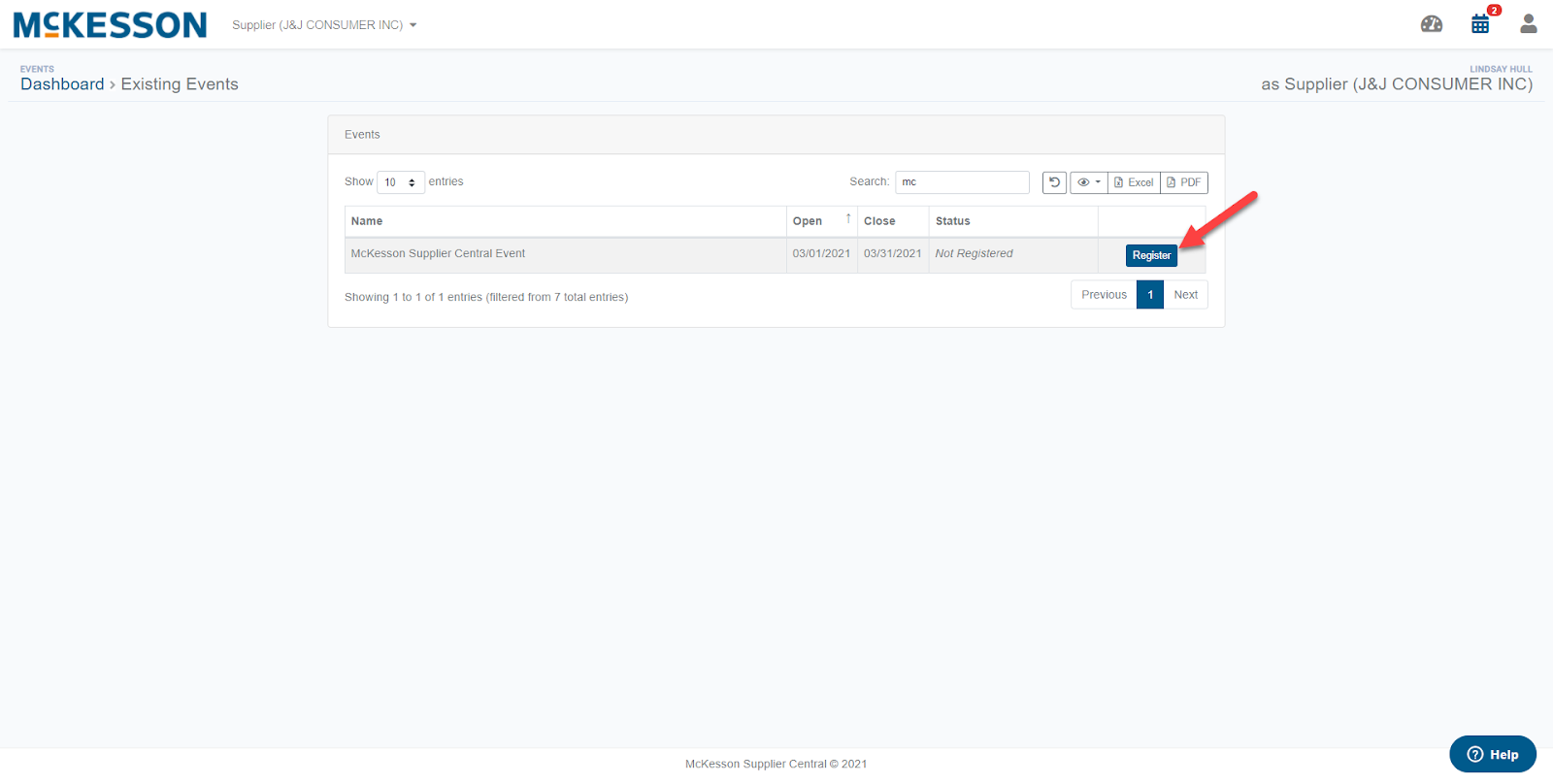
To submit items for an event, click the ‘Events’ icon in the top right corner of your dashboard. You will arrive on your Existing Events page. On this page, you will see all open, closed, and upcoming events. To the right of an open event, you will see a ‘Register’ button. Click this button to begin submitting your items.
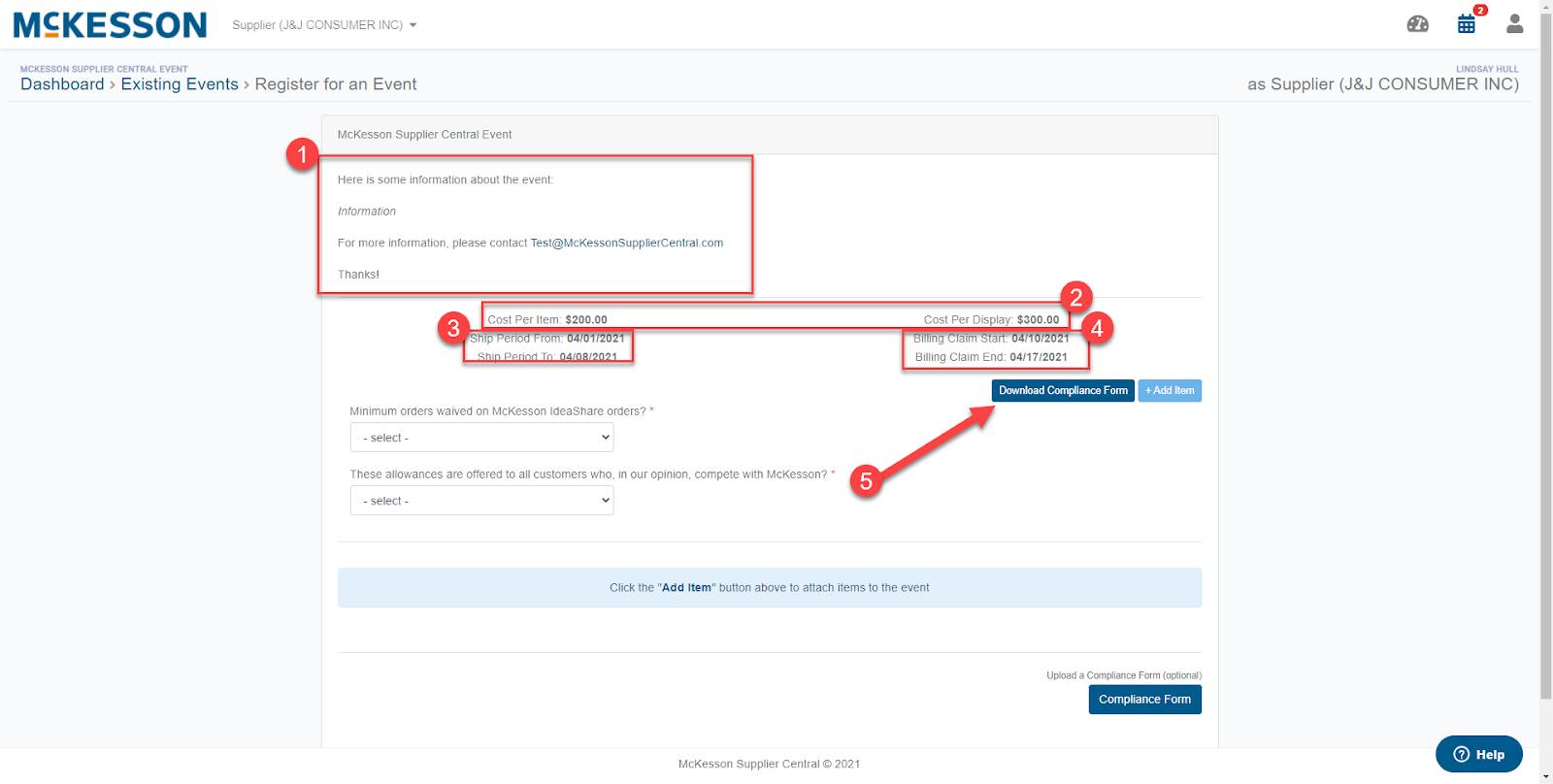
You will arrive on a new page to complete your item submission. You’ll notice a few pieces of information:
- Event information provided by McKesson.
- Cost per item submission and cost per display submission.
- Shipping period.
- Billing period.
- Compliance Form to download and sign.
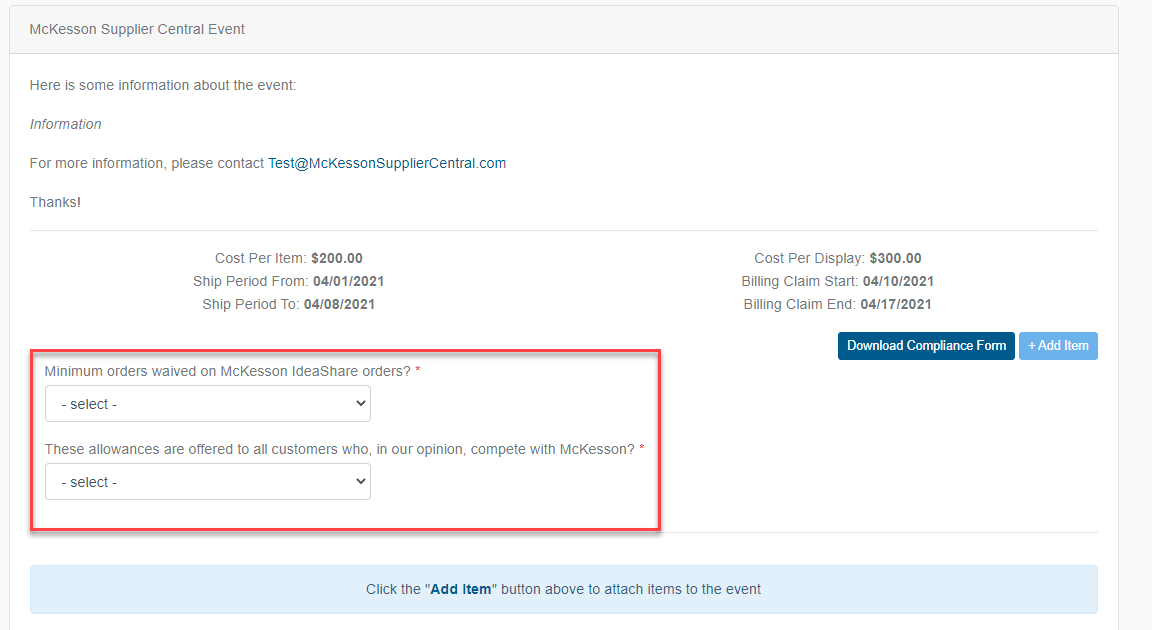
First, provide responses to the event questions:
Next, click the +Add Item button to select items to submit for the event. A pop-up box will appear, allowing you to search your items.
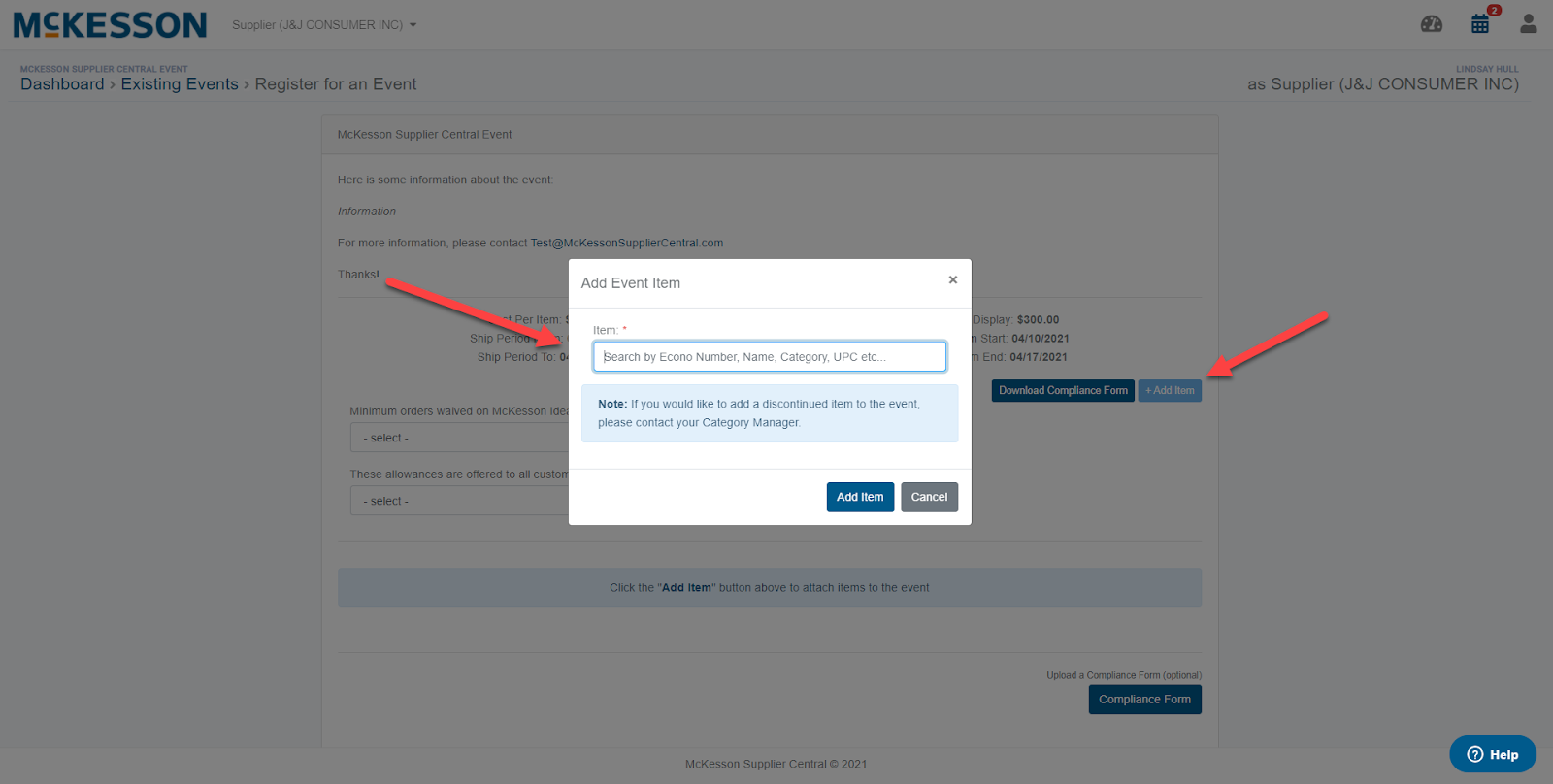
You can search by Econo Number, Item Description, UPC, or Category. Based on your search criteria, items will appear. Select your item and click ‘Add Item’.
Note: If your item is italicized, your item is discontinued and is unable to be added to the event. If you would like to add a discontinued item to the event, please contact your Category Manager.
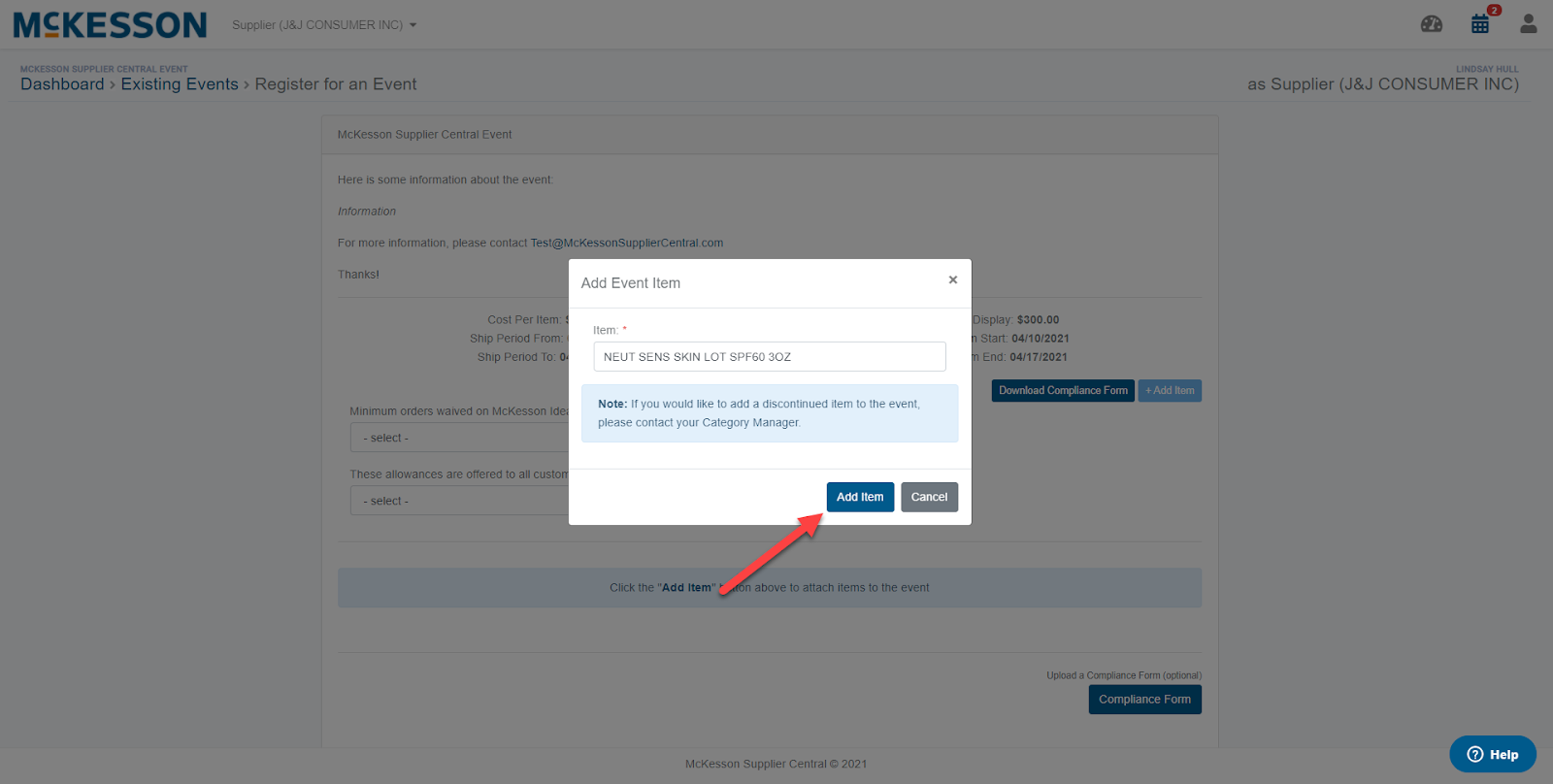
If you would like to add more items, click the +Add Item button again and repeat the steps above.
Once your item is added, you will see a form with your item’s information. At the top of your item information page, you will see auto-populated data from McKesson. Below, you will find required fields to complete
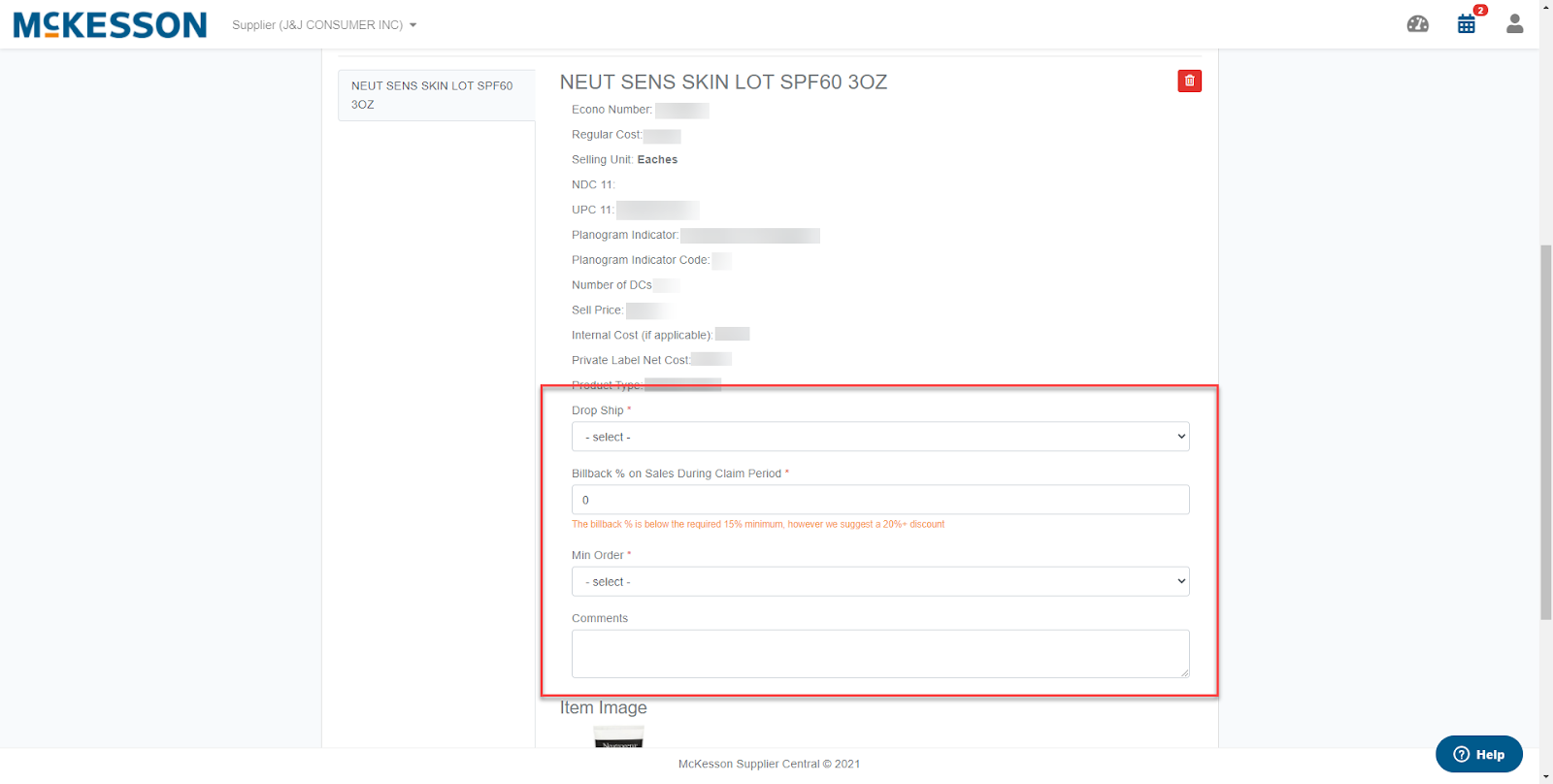
All fields with a red * are required prior to submitting.
You may notice an image attached to your item. If you provide all your required information and an image is included, you are ready to submit your item(s) to the Category Manager. If an image is not provided by McKesson, you will be required to upload an image , by Clicking the ‘Upload Image’ button.
Note: Your image must be at least 300 DPI, in CMYK color mode, and the file must be in JPEG, TIIF, or EPS format.

Once all required fields and attachments are complete, click the ‘Submit Items’ button to send your items to the Category Manager for review. If you completed your Compliance Form, you may upload your Compliance Form at this time by clicking the ‘Compliance Form’ button.
*Please note: The Compliance Form will be required before final submission.
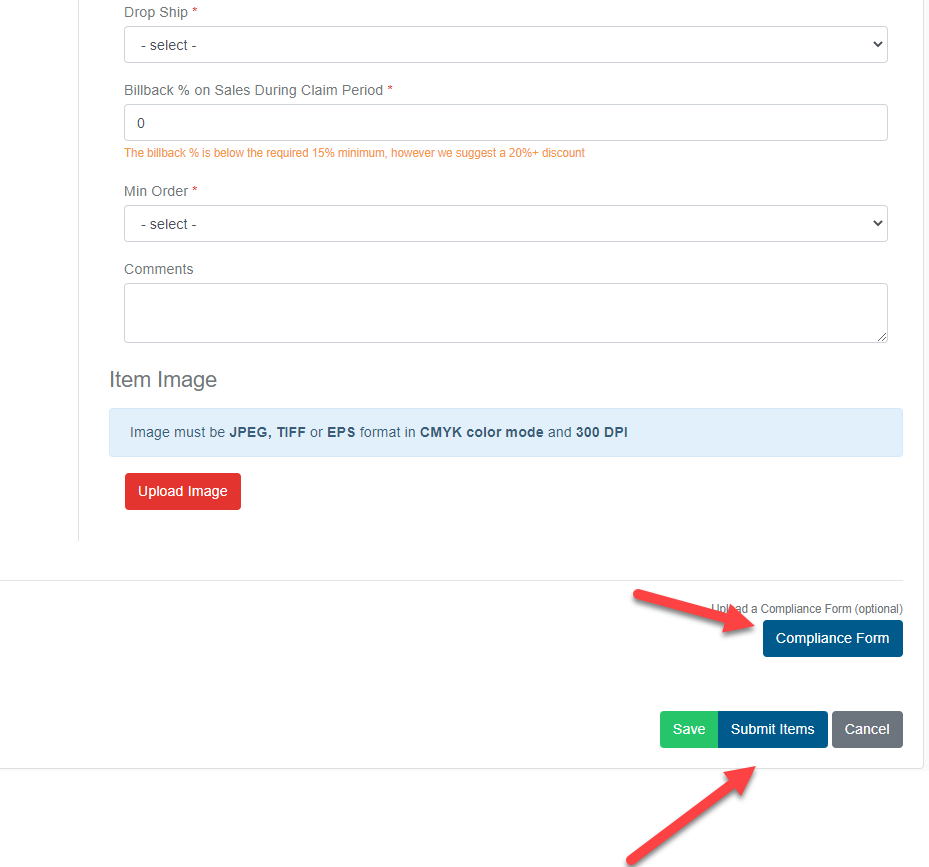
After your items are submitted, your Category Manager will be notified that they have a new item for review. You will be directed back to your Events dashboard and your submission’s status will be updated to ‘Category Manager: Reviewing’.
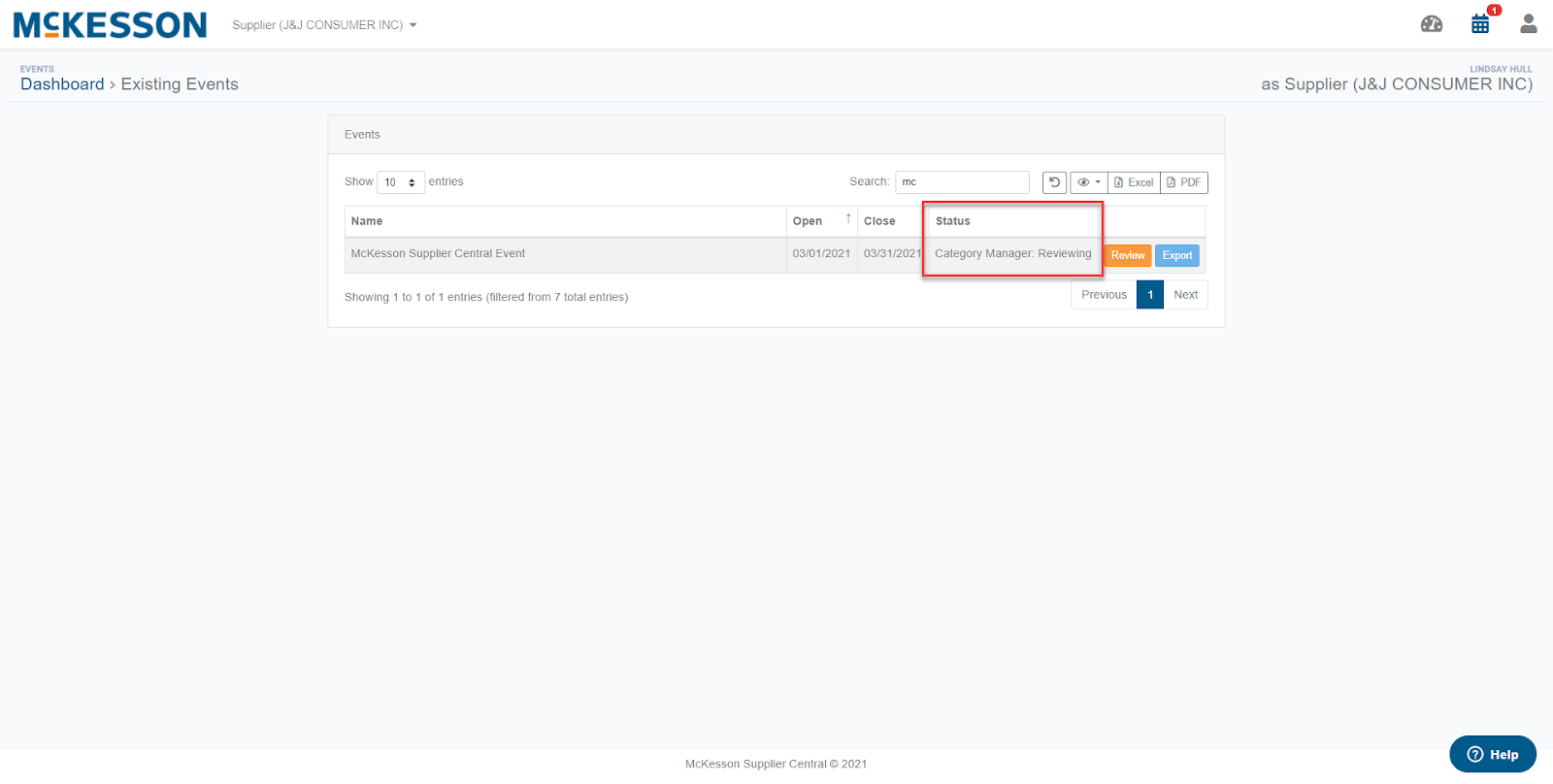
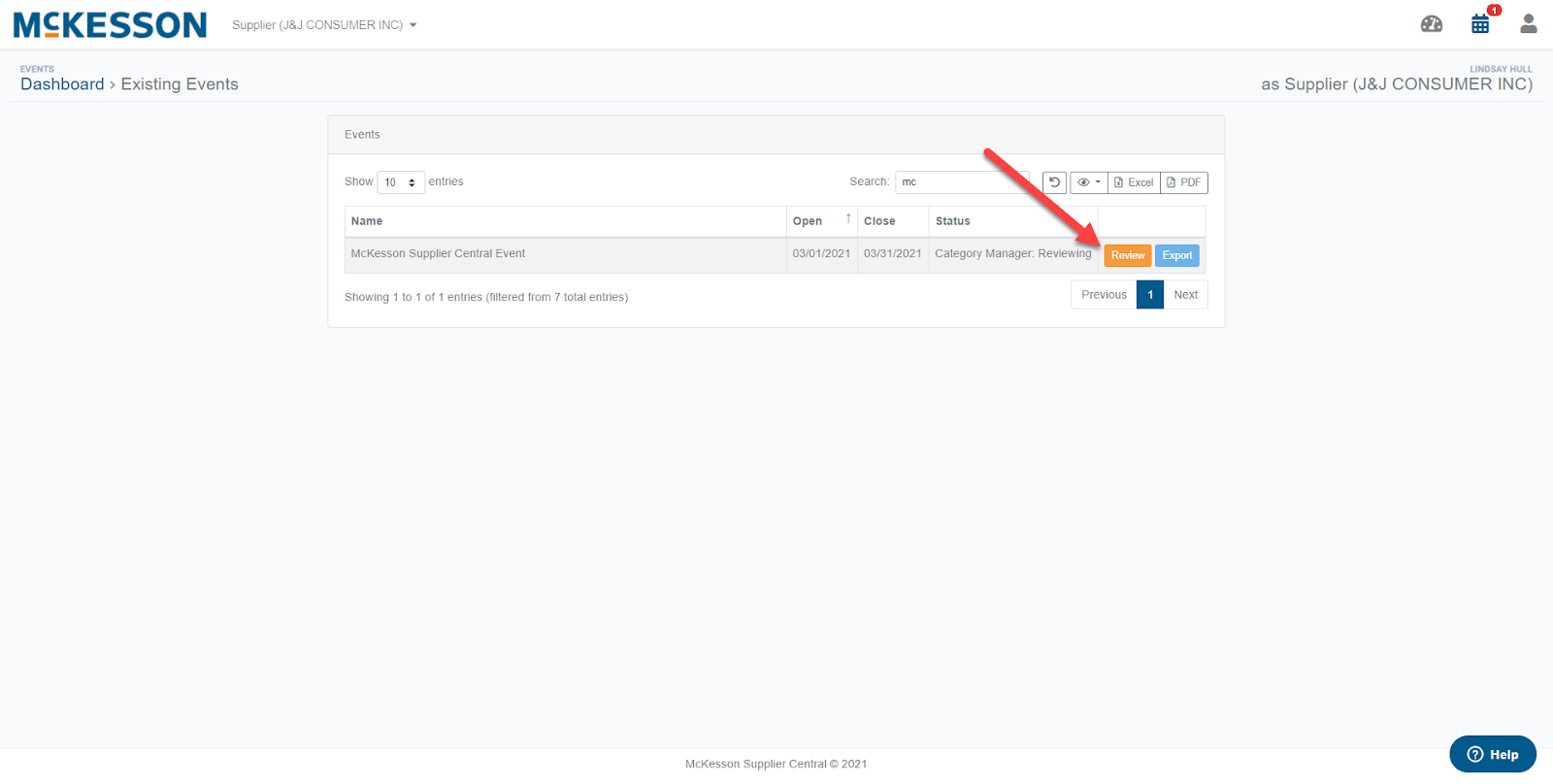
While your Category Manager is reviewing your submission, you have the ability to add additional items. To do this, click the ‘Review’ button and follow the steps above.
Reviewing Approved/Rejected Submissions
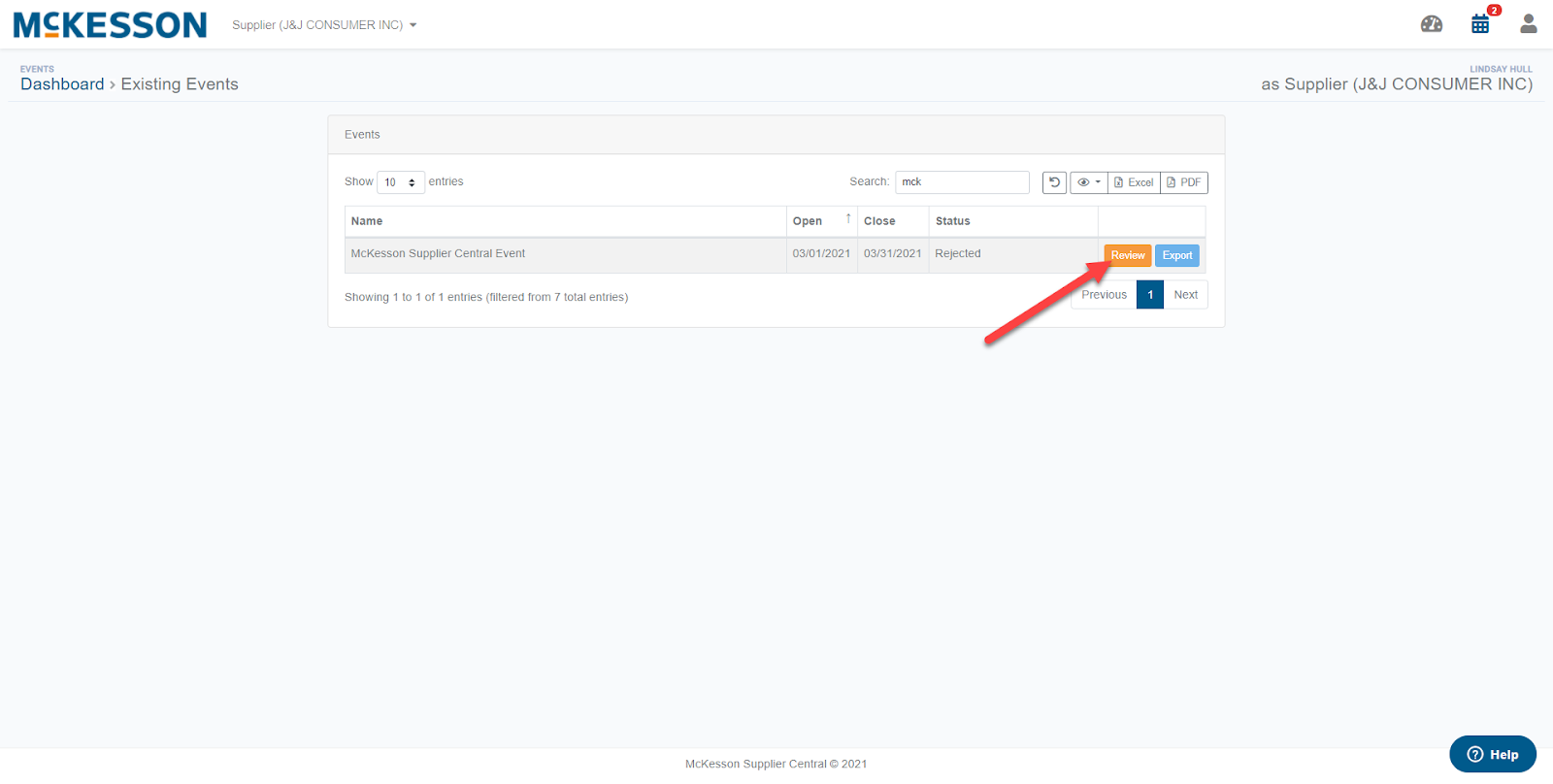
Once the Category Manager completes their review process, you will receive an email notifying you of the items that have been approved and rejected. To review the items, log into McKesson Supplier Central and go to your Events tab. Next to the Event’s status, click ‘Review’.
Note: If multiple Category Managers are reviewing your items, you need to wait until ALL items have been approved or rejected before you can update your items.
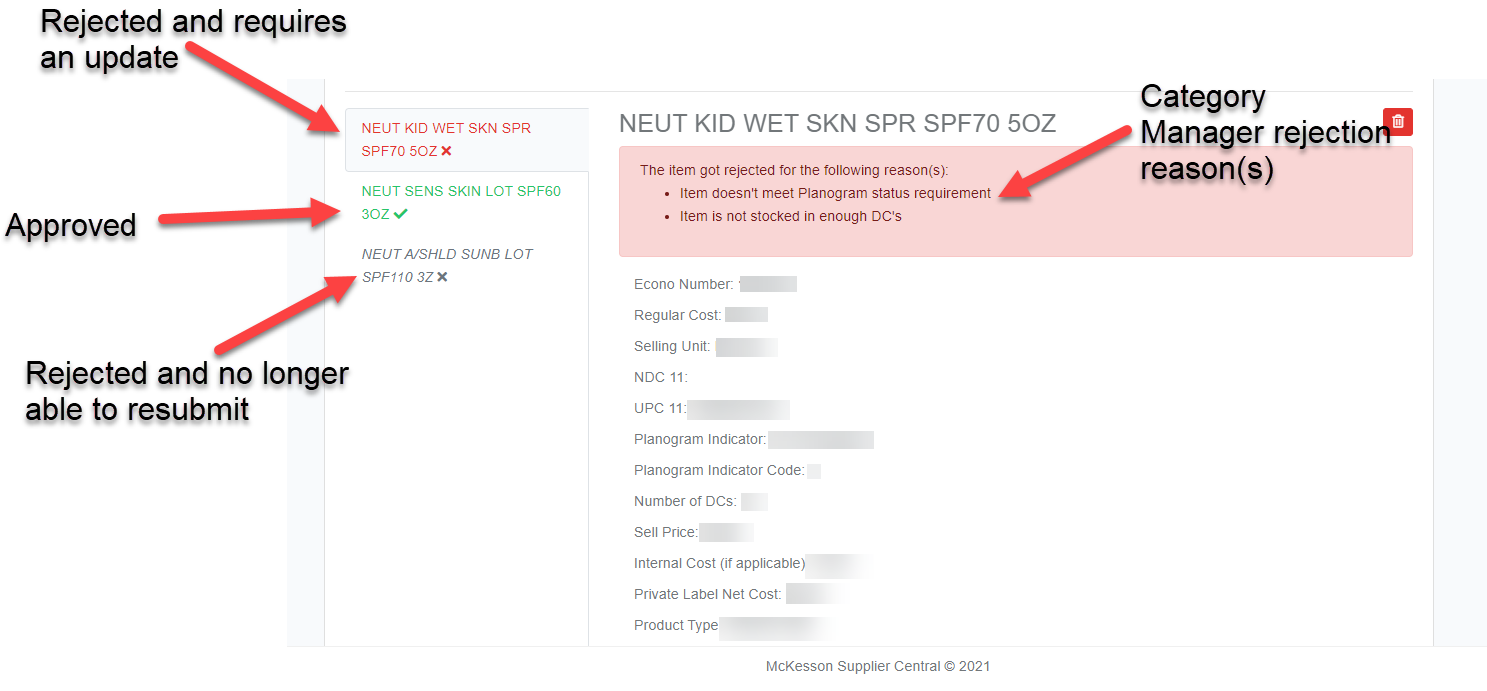
You will see one of the following responses:
- Green check mark – Your item was approved by the Category Manager. Once all items are approved, you can review the Special Show Cost.
- Note: ALL items must be reviewed and approved by the Category Manager before you can move to the Special Show Cost review step.
- Red ‘X’ – Your item was rejected by the Category Manager and requires an update before the item can be completely approved. You will be required to make an adjustment and resubmit.
- Your rejection reason will be highlighted in red at the top of your item.
- Gray ‘X’ – Your item was rejected and you are no longer able to make adjustments.
- Your rejection reason will be highlighted in red at the top of your item.
Once you’ve made the necessary adjustments (if needed), click the ‘Submit Items’ button to send the items back to your Category Manager. Your event’s status will change back to ‘Category Manager: Reviewing’.
Pricing Review Process
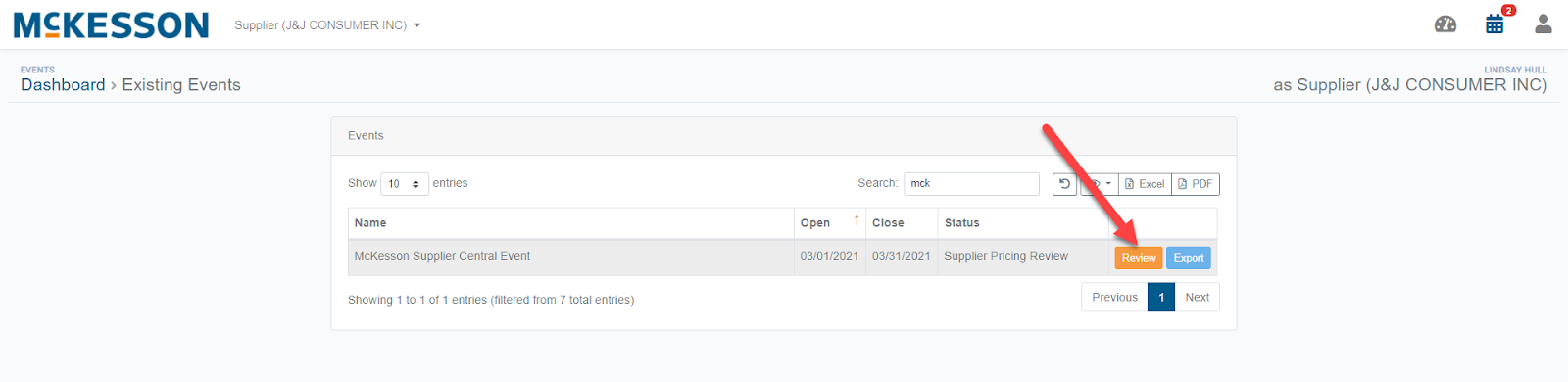
Once all items are approved or rejected, you are ready to move into the pricing review process. You’ll notice the Event’s status changed to ‘Supplier Pricing Review’. Click the ‘Review’ button to review the pricing.
The pricing review process replaces the manual Excel validation process completed by McKesson previously.
Please Note: This is the final review. Once ‘Approved’ and submitted, all pricing is final.
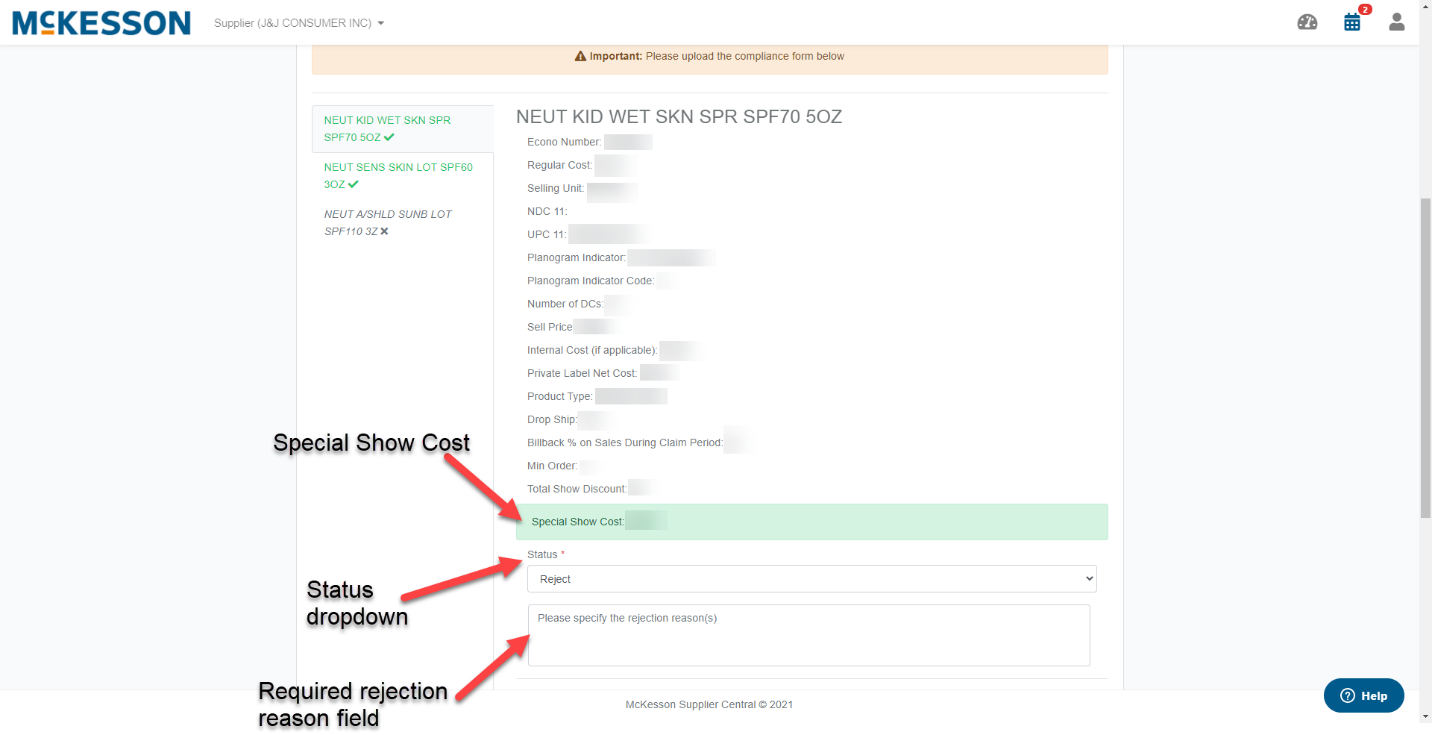
For all the approved items, you’ll see the Special Show Cost highlighted in green. Below the cost, you’ll see a status field where you can approve or reject the cost. If you decline, you’ll be required to enter a reason why you’re rejecting.
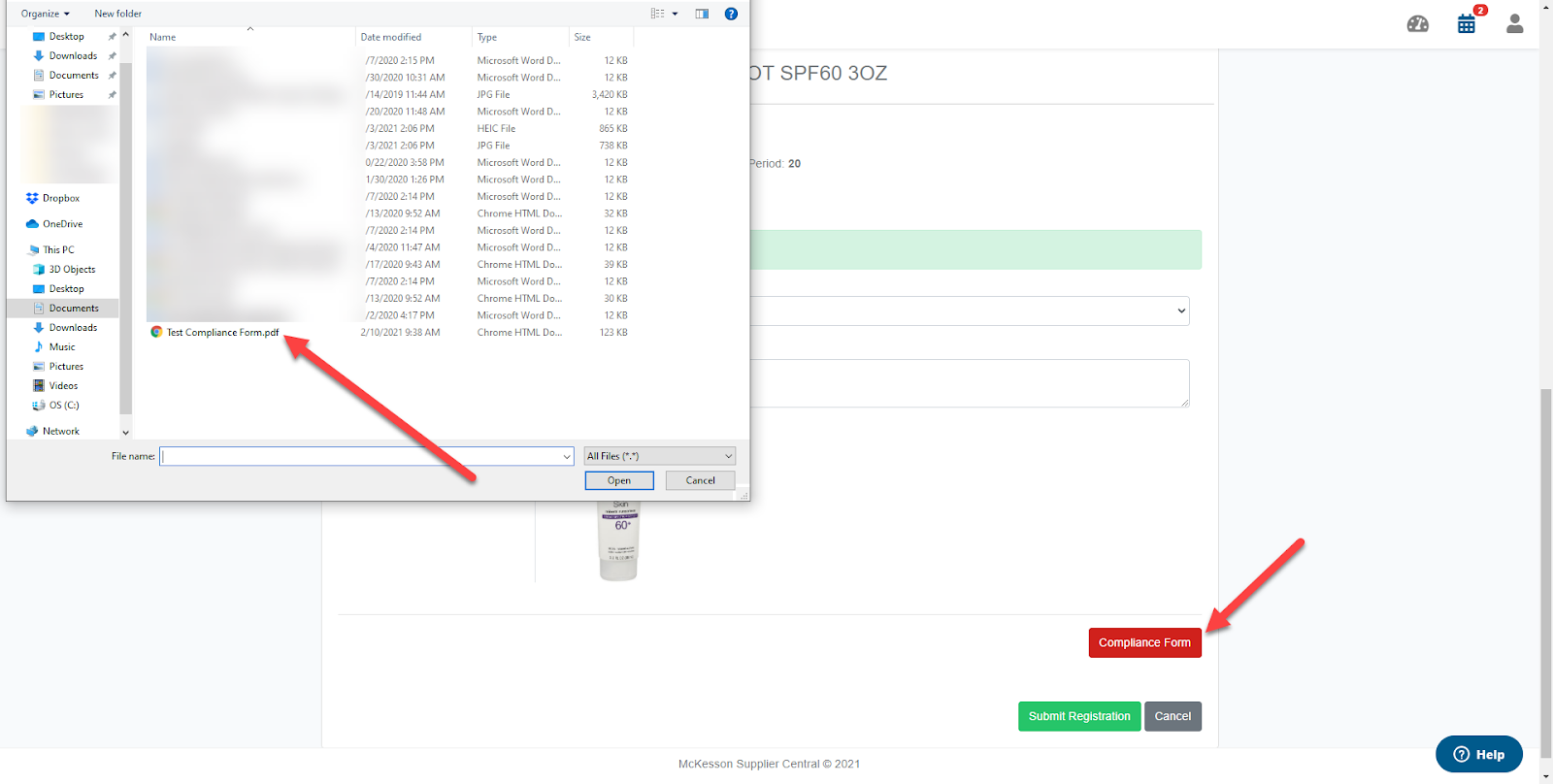
If you haven’t uploaded your Compliance Form, you will be required to upload the form prior to submitting your pricing response. To upload your Compliance Form, click the red ‘Compliance Form’ button at the bottom of your page. Select your form and add to the event.
Once your form is uploaded, you can view and download at any time by clicking on the file’s name. If you need to replace the form, click the trash can icon and upload a new form.
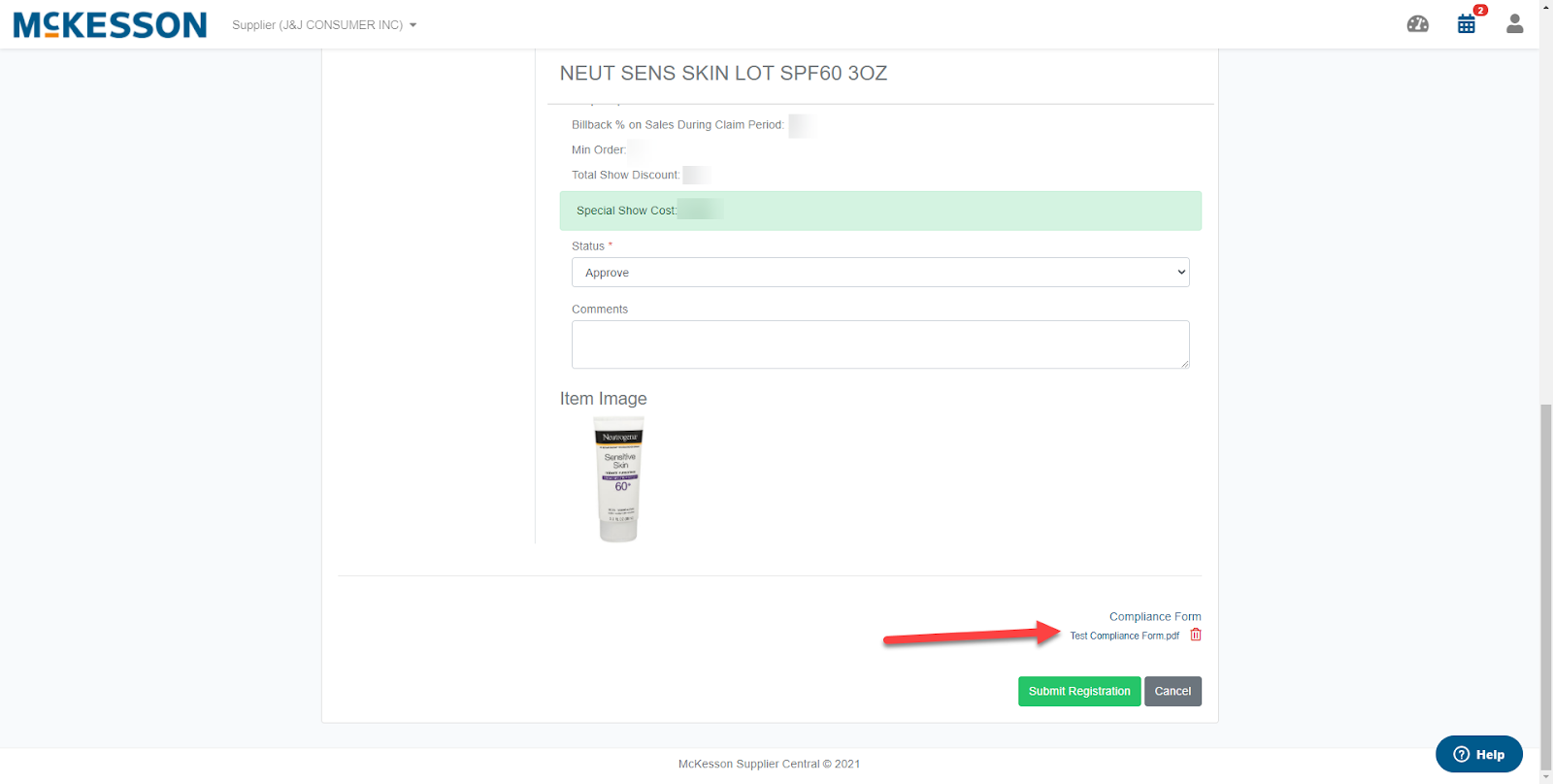
After you’ve approved/rejected each item’s pricing and uploaded your Compliance Form, click the ‘Submit Registration’ button to send your items back to the Category Manager. You’ll notice your event’s status updated to ‘Category Manager: Reviewing’.
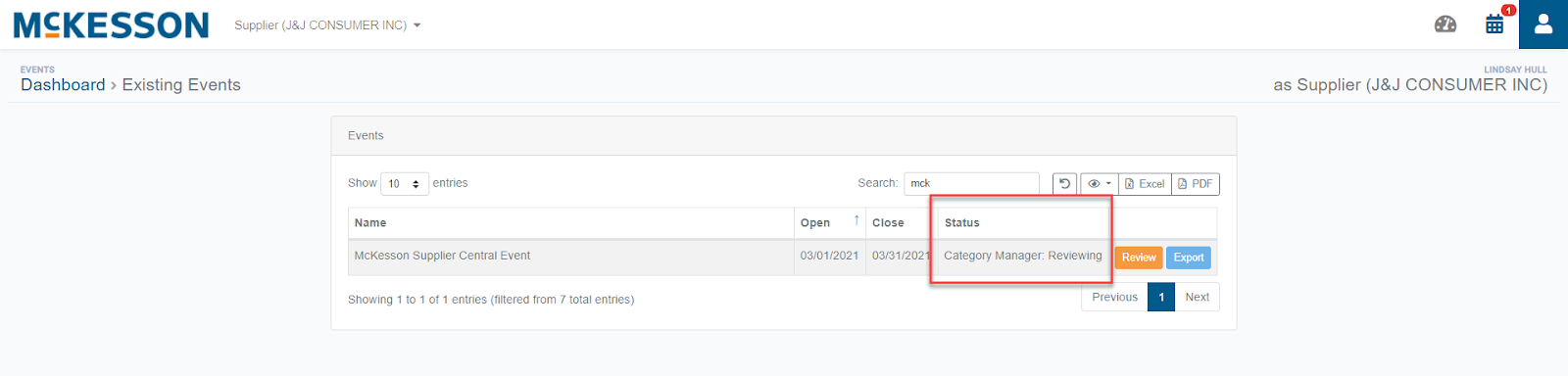
Keep in mind, you’ll have the ability to submit new items while the Category Manager is reviewing your pricing responses. You also have the ability to export your item listing by clicking the ‘Export’ button.
If items require additional review and approval, you will receive email notifications after the Category Manager has reviewed your submission.
Once all item’s pricing is approved, the items will move to the Category Manager for final review. Your event’s status will change to ‘Category Manager: Final Review’.
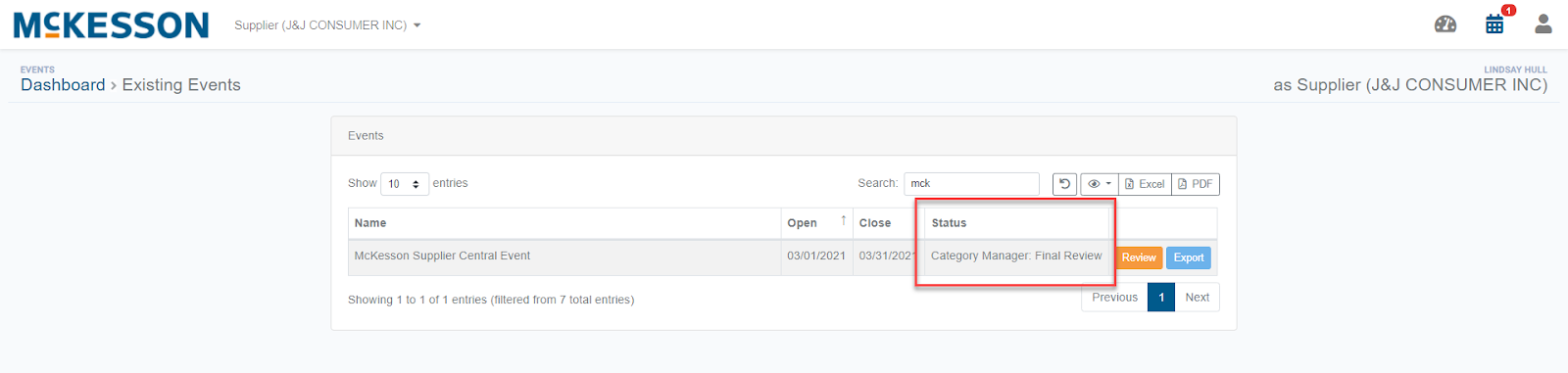
After the Category Manager completes their final review, your items will be added to the event and will appear in the customer catalog.
You may continue submitting items while the submission window is still open. Category Manager reviews may still occur after the event is closed. If an item is rejected back to you after the event is closed, you will have the opportunity to adjust and resubmit your item.
Support
For additional help and support, please contact: Support@McKessonSupplierCentral.com.
Comments
0 comments
Please sign in to leave a comment.